0%

创建新功能分支

1
git checkout -b feature-unit-test dev

创建fixbug分支

1
git checkout -b hotfix-1.2.1 master

当开发新功能或修复bug合并分支需要用”–no-ff”

1
git merge --no-ff hotfix-1.2.1

删除分支

1
git branch -d feature-x

删除远程分支

1
git push origin -d feature-wxpay

当展示离开当前分支的时候临时缓存代码,避免合并到其它分支

1
2
3
4
//暂时缓存代码
git stash
//从缓存中恢复代码
git stash pop

npm指定github地址和分支安装包:

1
npm install git+https://github.com:LLK/scratch-blocks.git#local-closure

ubuntu 安装puppeteer,linux使用puppeteer

FAQs : error nunjucks@3.1.3: The engine “node” is incompatible with this module. Expected version “>= 6.9.0 <= 11.0.0-0”. Got “11.10.0”

解决方法:忽略引擎检查

1
yarn install —ignore-engines

vc++构建环境 vsbuild

1
2
3
https://visualstudio.microsoft.com/zh-hans/thank-you-downloading-visual-studio/?sku=BuildTools&rr=https%3A%2F%2Fwww.jianshu.com%2Fp%2Fb4d739b43a23

npm install --global --production windows-build-tools

es6字符串拼接

1
2
3
4
5
6
7
const welcome = 'You have logged in as ' + first + ' ' + last + '.' 
const db = 'http://' + host + ':' + port + '/' +

简写为:

const welcome = `You have logged in as ${first} ${last}`;
const db = `http://${host}:${port}/${database}`;

sort排序数组对象(降序)

1
2
3
4
5
6
7
8
9
10
11
12
13
14
var compare = function (prop) {
return function (obj1, obj2) {
var val1 = obj1[prop];
var val2 = obj2[prop];if (val1 < val2) {
return -1;
} else if (val1 > val2) {
return 1;
} else {
return 0;
}
}
}
//调用
arr.sort(compare("age"))

es6 find函数

1
2
3
pet = pets.find(pet => pet.type ==='Dog' && pet.name === 'Tommy');

console.log(pet); // { type: 'Dog', name: 'Tommy' }

es6展开运算符

1
2
const odd = [1,3,5]
const nums = [2,4,6,...odd]

【js】:解构值

1
2
3
4
5
6
7
8
9
10
11
12
13
14
15
16
const observable = require('mobx/observable'); 
const action = require('mobx/action');
const runInAction = require('mobx/runInAction');
const store = this.props.store;
const form = this.props.form;
const loading = this.props.loading;
const errors = this.props.errors;
const entity = this.props.entity;


import { observable, action, runInAction } from 'mobx';
const { store, form, loading, errors, entity } = this.props;

//甚至可以指定自己的变量名:

const { store, form, loading, errors, entity:contact } = this.props;

判断是否为null或者没有定义

1
const variable2 = variable1 || 'new';

【npm】:升级node

1
2
npm install -g n
n stable

【npm】:升级npm

1
2
npm install -g npm
npm install npm@latest -g

定位文本长度大于10的超链接

1
//a[string-length(text())>10]

网站虚拟空间(apache、php)部署vue history模式的html文件

https://cli.vuejs.org/zh/guide/deployment.html#%E4%BD%BF%E7%94%A8-history-pushstate-%E7%9A%84%E8%B7%AF%E7%94%B1

https://www.jb51.net/article/142831.htm

MVVM

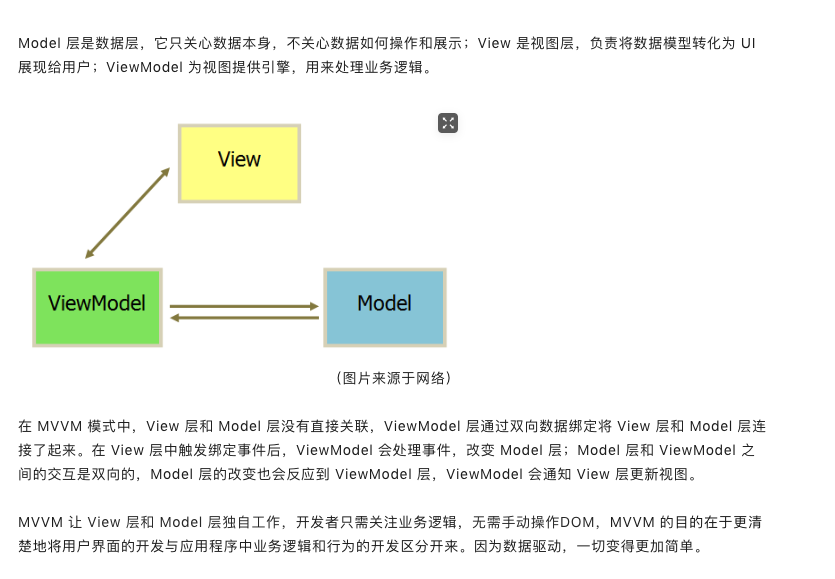
M是model代表数据层,v是view代表视图层,vm是ViewModel,特点是v层触发事件之后会触发vm层的事件,vm层的事件会改变m层数据,数据改变之后会通过vm层重新传到v层

mvvm

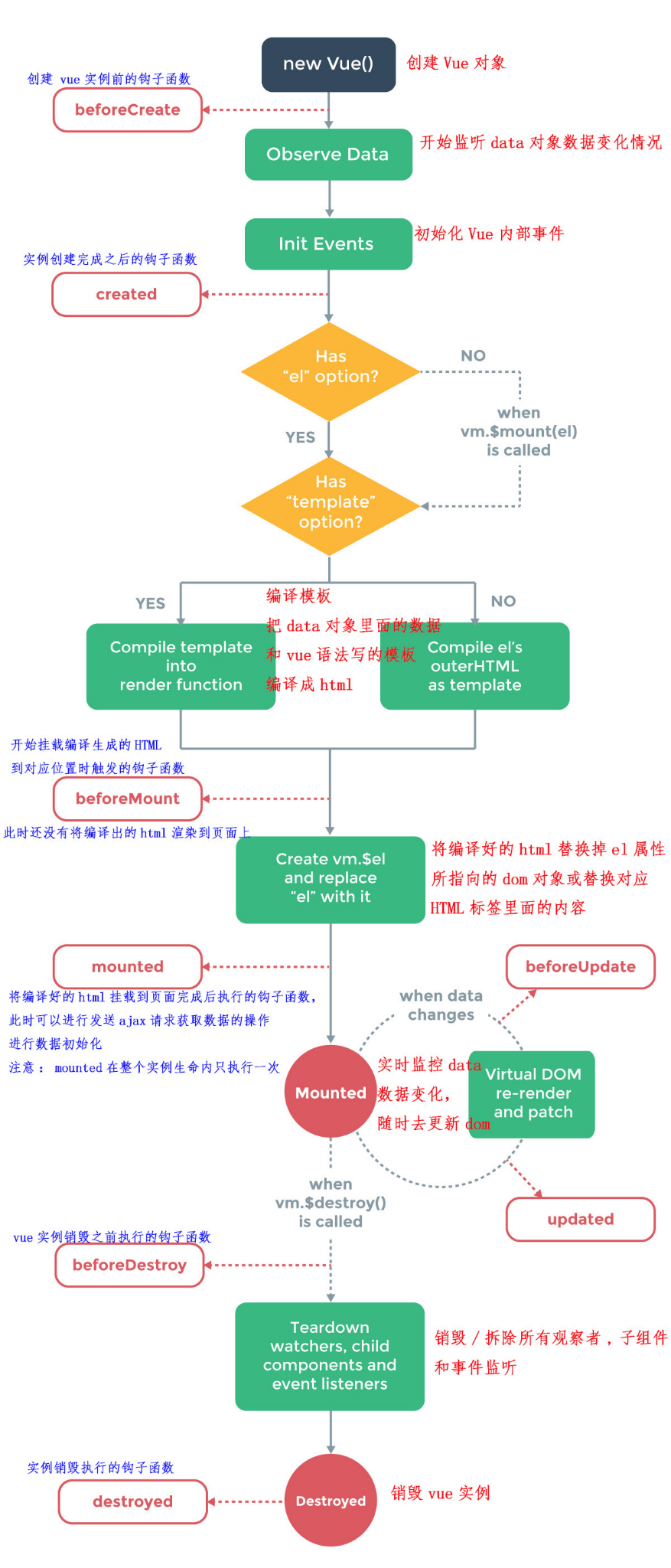
生命周期

mvvm

虚拟环境

1
2
3
4
5
6
7
8
9
10
#linux:
virtualenv -p python3 athena
source athen/bin/activate
deactivate
#win:
pip install virtualenv
pip install virtualenvwrapper
pip install virtualenvwrapper-win
mkvirtualenv XXX
deactivate

re正则表达式

1
2
3
4
5
import re
pattern = re.compile(r'(http[sS]*://.*?)/.*')
match = pattern.match('http://op0ooxcfn.bkt.clouddn.com/flower_logo')
if match:
print(match.group())

flask 导出生成models文件

1
flask-sqlacodegen --flask mysql+pymysql://root:我是密码@blackdora.xyz/athena_new --outfile modules.py

pip国内源:

pip3 install -i https://pypi.douban.com/simple

阿里云 http://mirrors.aliyun.com/pypi/simple/

中国科技大学 https://pypi.mirrors.ustc.edu.cn/simple/

豆瓣(douban) http://pypi.douban.com/simple/

清华大学 https://pypi.tuna.tsinghua.edu.cn/simple/

中国科学技术大学 http://pypi.mirrors.ustc.edu.cn/simple/

pip包的环境变量路径

/home/user/.local/bin/

export PATH=\$HOME/.local/bin:/usr/local/bin:\$PATH

Gerapy

官方文档

1
2
3
4
5
workon gerapy
cd workspace
gerapy runserver
gerapy migrate
D:\code\Gerapy\workspace\gerapy>

flex布局:垂直加水平居中

1
2
3
4
display: flex;
flex-direction: column;
justify-content: center;
align-items: center;

div或img图片高度随宽度自适应

http://blog.csdn.net/zh_rey/article/details/69666232

1
2
3
4
5
6
7
8
9
10
11
12
13
14
15
16
17
18
19
20
21
22
23
24
25
.el-carousel__item{  
width: 100%;
position:relative;
z-index:2;
display: block;
}
.el-carousel__item img{
position:absolute;
top:0;
bottom:0 ;
left:0 ;
right:0 ;
width:100% ;
margin:auto ;
z-index: 1 ;
*zoom:1 ;
}
.el-carousel__item:before {
content: "";
display: inline-block;
padding-bottom: 100%;
width: 0.1px; /*必须要有数值,否则无法把高度撑起来*/
vertical-align: middle;
}
.el-carousel__container{height: 100% !important}

scss语法

https://www.sassmeister.com/

1
2
3
4
5
6
7
8
9
10
11
12
13
14
15
16
17
18
19
20
21
22
23
24
25
26
27
28
29
30
31
32
33
34
35
36
37
38
39
40
41
42
43
44
45
46
47
48
49
50
51
52
53
54
55
56
57
58
59
60
61
62
63
64
65
66
67
68
@mixin center($width,$height)
{
width: $width;
height: $height;
position: absolute;
top: 50%;
left: 50%;
margin-top: -($height) / 2;
margin-left: -($width) / 2;
}
div
{
@include center(100px,80px);
}
p{
@include center(80,40px);
}


%spriteAll
{
bakckground:url(images/sprite.png) no-repeat;
color:blue;
}
.sprite-1
{
@extend %spriteAll;
background-position:0 -30px;
}
.sprite-2
{
@extend %spriteAll;
background-position:0 -60px;
}


$color1:red;
$color2:green;
$color3:blue;
body
{
color:$color1;
.column
{
color:$color2;
.content-title
{
color:$color3;
}
}
}

div
{
width:100px;
height:100px;
font:
{
family:Arial;
size:14px;
weight:bold;
}
}

div
{
width:(100px + 23px);
}

vue 格式化:

如何优雅的使用VS Code+ESLint+Prettier写Vue程序

go断点调试:

Windows + VS Code搭建 Go 开发环境

mac VSCode安装GO语言依赖工具

go vscode 断点调试

1
2
3
4
5
6
7
8
9
"configurations": [
{
"name": "Launch file",
"type": "go",
"request": "launch",
"mode": "debug",
"program": "${workspaceRoot}/main.go"
}
]

vim插件的设置:

1
"vim.useCtrlKeys": false

Remote-WSL:

  1. “在 Windows 端安装 Visual Studio Code Insiders”
  2. 安装 Remote Development 扩展包
  3. F1 remote wsl
    1
    2
    3
    4
    5
    6
    7
    8
    9
    在 VS Code 中打开「适用于 Linux 的 Windows 子系统」中的文件夹与从命令提示符打开 Windows 文件夹非常相似。

    打开 WSL 终端窗口(使用开始菜单项或从命令提示符键入 wsl )。

    切换到你要在 VS Code 中打开的文件夹(包括但不限于 Windows 文件系统挂载点,如 /mnt/c)

    在终端中输入 code-insiders .。在第一次执行此操作时,你应该看到 VS code 在获取运行于 WSL 所需的组件。这应该只需要很短的时间,而且只需要执行一次。

    片刻之后,一个新的 VS Code 窗口将会出现,你将看到一个 VS Code 正在 WSL 中打开文件夹的通知。

关闭vscode文件预览模式

1
"workbench.editor.enablePreview": false,

vscode侧边栏找不到搜索按钮

1
2
"search.location": "panel" //改成
"search.location": "sidebar"

Linux下配置vscode终端字体:

在Ubuntu 18.04.1LTS 下的解决方案(亲测可用),

其他版本linux做参考。

  1. 下载安装字体

    1
    2
    $cd /usr/share/fonts/truetype/
    $sudo git clone https://github.com/abertsch/Menlo-for-Powerline.git
  2. 刷新字体

    1
    $sudo fc-cache -f -v
  3. 回到 Vs Code的用户设置.json 中加入以下代码

    1
    2
    "terminal.integrated.fontFamily": "Menlo for Powerline",
    "editor.fontFamily": "'monospace','Droid Sans Mono', 'monospace', monospace, 'Droid Sans Fallback'",

vscode配置

1
2
3
4
5
6
7
8
9
10
11
12
13
14
15
16
17
18
19
20
21
22
23
24
25
26
27
28
29
30
31
32
33
{
"vim.useCtrlKeys": false,
"go.inferGopath": false,
"python.linting.pylintEnabled": false,
"python.linting.flake8Enabled": true,
"python.linting.enabled": true,
//.vue文件template格式化支持,并使用js-beautify-html插件
"vetur.format.defaultFormatter.html": "js-beautify-html",
//js-beautify-html格式化配置,属性强制换行
//文档:https://github.com/beautify-web/js-beautify#css--html
"vetur.format.defaultFormatterOptions": {
"js-beautify-html": {
"wrap_line_length": 170,
"wrap_attributes": "auto",
"end_with_newline": false
}
},
//根据文件后缀名定义vue文件类型
"files.associations": {
"*.vue": "vue"
},
//保存时eslint自动修复错误
"eslint.validate": [
"javascript",
"javascriptreact",
{
"language": "vue",
"autoFix": true
}
],
"eslint.autoFixOnSave": true,
"python.pythonPath": "C:\\Users\\mayn\\envs\\Gerapy\\Scripts\\python.exe"
}

vscode vue配置

1
2
3
4
5
6
7
8
9
10
11
{
"eslint.autoFixOnSave": true,
"eslint.validate": [
"javascript", "javascriptreact",
{ "language": "html", "autoFix": true },
{ "language": "vue", "autoFix": true } ],
"eslint.options": { "configFile": "./.eslintrc.js" },
"vetur.format.defaultFormatter.html": "js-beautify-html", //格式化html
“editor.formatOnSave": true, //是否保存格式化
"editor.tabSize": 2 // tab锁紧2个空格
}

es6自动格式化语法

1
2
3
4
5
6
7
"eslint.autoFixOnSave": true,
"eslint.validate": [
"javascript",
"javascriptreact"
, { "language": "html", "autoFix": true }
, { "language": "vue", "autoFix": true }
],

对选中的文本进行全部编辑

1
alt+enter

显示当前文件函数变量

1
win+p 输入@

Text类型的大小区别

https://www.cnblogs.com/exmyth/p/8747293.html

表头 表头
TINYTEXT 256 bytes *
TEXT 65,535 bytes ~64kb
MEDIUMTEXT 16,777,215 bytes ~16MB
LONGTEXT 4,294,967,295 bytes ~4GB

设置外键

1
alter table `limited` add constraint fk_limited_goods_id foreign key(goods_id) references `goods`(id);

mysql8.0转旧版本的验证方式

8.0安全验证方式:

caching_sha2_password

1
ALTER USER 'root'@'%' IDENTIFIED WITH mysql_native_password BY 'sdb@2019';

concat用法

1
select concat('{value:\'',code,'\',label:\'',name,'\',children:[',(select concat(GROUP_CONCAT(CONCAT('{value:\'',b.code,'\',label:\'',b.name,'\'}')),']},') from area b where b.parent_code=a.code group by b.parent_code)) from area a where layer=0

键盘快捷键符号

Command(或 Cmd)⌘
Shift ⇧
Option(或 Alt)⌥
Control(或 Ctrl)⌃
Caps Lock ⇪

FAQs: select: error: tool ‘xcodebuild’ requires Xcode, but active developer directory ‘/Library/Developer/CommandLineTools’ is a command line tools instance
找不到xcodebuild

1
sudo  xcode-select —switch /Applications/Xcode.app/Contents/Developer